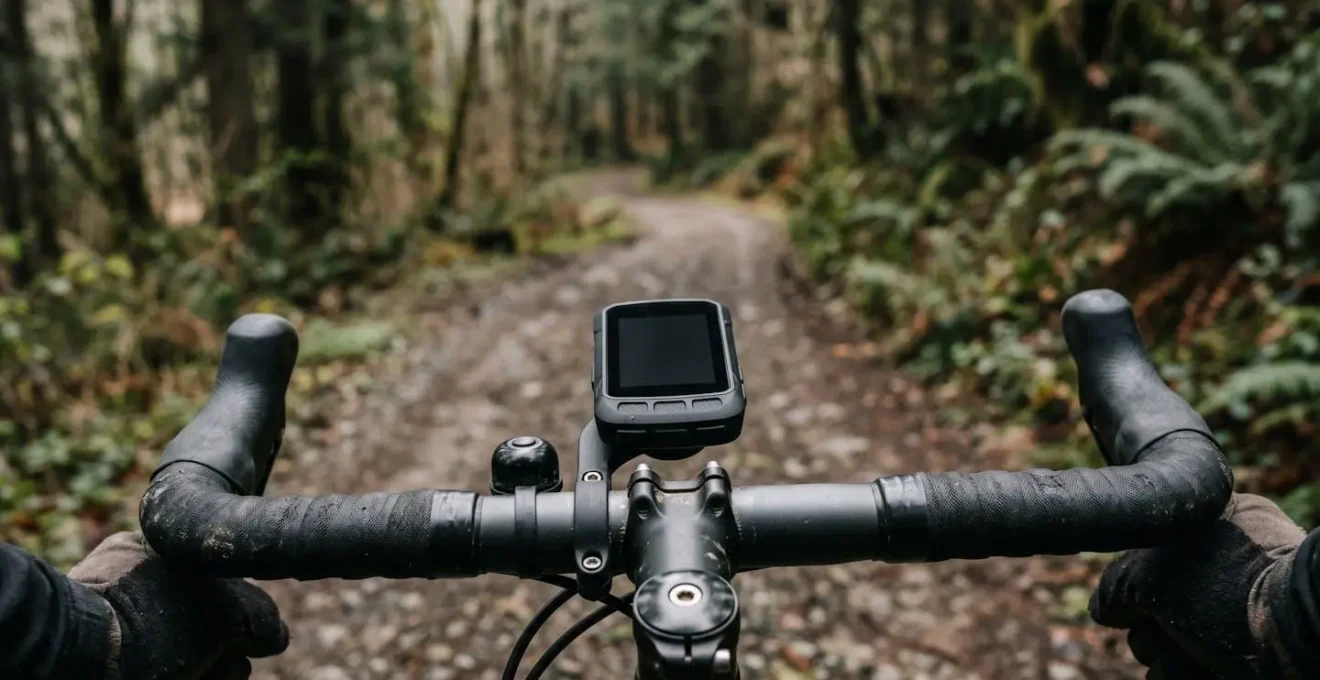
The best bike computer isn’t the one with the most features, but the one that fails most gracefully when you’re tired, lost, and in the rain.
- User-friendliness is defined by how a device handles sensor dropouts and bad re-routing, not by the spec sheet.
- Button-based units (like Wahoo and some Garmins) consistently outperform touchscreens in bad weather and during high-effort intervals.
Recommendation: Prioritize a device that solves for your biggest real-world frustration (e.g., reliable navigation, easy syncing) over one that promises to do everything.
There’s a moment every serious cyclist knows. You’re miles from home, legs are burning, and the ride has been glorious. Then it happens. The incessant beeping starts. Your screen shows you’re “off course” despite being on the only road for miles. Your heart rate has flatlined at 80 bpm during a max effort. The romance of the open road is shattered by the frustrating reality of technology that has failed you.
The Garmin vs. Wahoo debate usually devolves into comparing feature lists, screen sizes, and battery life. It’s a conversation for tech reviewers, not for cyclists who just want to ride. We’re told Wahoo is “simpler” and Garmin is more “powerful,” but these are meaningless platitudes when you’re trying to operate a touchscreen with sweaty fingers or figure out why your ride won’t upload to Strava.
This article throws out the spec sheet. We’re taking a different approach, guided by a single, ruthless metric: the “Just Ride” principle. We believe the true test of a bike computer’s user-friendliness isn’t in what it can do, but in how it behaves when things inevitably go wrong. It’s about how gracefully it fails. After all, a computer that adds stress and cognitive load is not a tool; it’s a burden.
We are going to dissect the most common technological frustrations cyclists face—from confusing maps and sensor dropouts to navigating with frozen fingers—to reveal which design philosophy actually serves the rider when they need it most. Forget the marketing. This is about finding the device that lets you focus on the ride, not the screen.
This guide breaks down the core frustrations that non-technical riders face with modern GPS units. Use the summary below to jump directly to the problem that plagues you the most.
Summary: Garmin vs. Wahoo: Navigating the Tech Minefield
- Base Maps vs. Topo Maps: What Do You Need for Off-Road Gravel Riding?
- Why Using Your iPhone on the Handlebars Is a £1,000 Risk in the Rain
- The Pairing Nightmare: Why Your Heart Rate Monitor Drops Out During Intervals
- Touchscreen or Buttons: Which Works When You Are Wearing Winter Gloves?
- Bluetooth Blues: How to Force Upload Your Ride When the App Refuses
- The “Re-Routing” Loop: How to Recover When Your GPS Sends You Down a Farm Track
- Optical vs. Chest Strap: Why Your Watch Misses High-Intensity Spikes?
- Komoot vs. Strava Routes: Which Planner Finds the Best Quiet Lanes in the UK?
Base Maps vs. Topo Maps: What Do You Need for Off-Road Gravel Riding?
When it comes to navigation, more detail isn’t always better. For a non-techie, a cluttered map is a source of stress, not information. The fundamental choice is between “base maps” and “topographical (topo) maps.” Base maps are like a standard car GPS: they show roads, turn-by-turn directions, and key landmarks. They are clean, simple, and excellent for road cycling. Topo maps add layers of detail like elevation contours, trail types, and land features, which are essential for mountain biking but can create significant cognitive load for gravel or road riders.
The key is understanding what your device supports. As experts at Cycling Weekly point out, “Some will have basemaps preinstalled, or that can be downloaded while others may only support breadcrumb trails.” A breadcrumb trail is the most basic form—a simple line on a blank screen. While minimalist, it’s often not user-friendly for exploring new areas. For most non-techie gravel riders, a quality base map is the sweet spot, providing clear navigation without overwhelming detail. Wahoo has built its reputation on this philosophy, offering clean, high-contrast maps, while Garmin offers deep, detailed topo maps that can be customized but also easily become cluttered.
The challenge for many users, especially on devices with limited internal memory, is managing this map data. You don’t need a detailed map of Asia for your Sunday club run in the Cotswolds. Being selective is key to performance and simplicity.
Your Action Plan: Taming Your Device’s Map Storage
- Identify Compatibility: Check if your device (e.g., Garmin Edge 530/830/1030 series, Wahoo ELEMNT) supports third-party or region-specific maps. Not all do.
- Perform a Regional Purge: Use the companion app (Garmin Express or Wahoo ELEMNT) to delete map regions you will never ride in. This frees up gigabytes of space and can speed up your device.
- Choose Detail Wisely: For road and most gravel riding, stick to the pre-installed base maps. Only download detailed Topo maps if you are specifically planning a ride with significant, complex off-road sections.
- Assess Visual Clutter: Before a big ride with a new map, do a test run. Can you clearly see your route line, or is it lost in a sea of contour lines and symbols? If it’s confusing, revert to a simpler map.
- Evaluate Cost vs. Complexity: Consider if the extra detail from paid third-party maps justifies the often-complex setup process compared to the free, pre-loaded options that are designed to work seamlessly with your device.
Why Using Your iPhone on the Handlebars Is a £1,000 Risk in the Rain
It’s tempting. Your thousand-pound smartphone has a brilliant screen, a great GPS, and you already own it. Why not just strap it to your handlebars and use an app like Komoot or Strava? The answer comes in two devastating forms: water and vibration. While many modern phones have some water resistance, it’s not designed to withstand a prolonged, high-pressure-while-riding downpour. One failed seal can mean a very expensive paperweight.
But the more insidious threat is vibration. The delicate, microscopic components inside your phone’s camera module are not built to handle the constant, high-frequency buzz of a bicycle traveling over imperfect road surfaces. The Optical Image Stabilization (OIS) and Autofocus (AF) systems are particularly vulnerable. This isn’t scaremongering; it’s a physical reality.
This macro photograph shows the intricate and fragile nature of a modern smartphone’s camera module, the very part susceptible to vibration damage.
This damage is permanent and not always covered by warranty. In fact, according to Apple’s official support documentation, exposure to high-amplitude vibrations within certain frequency ranges can degrade the performance of these camera systems. Dedicated bike computers from Garmin and Wahoo are built as rugged, single-purpose tools. They are designed from the ground up to be waterproof (typically to an IPX7 standard) and to withstand years of road buzz without falling apart.
I used my iPhone 13 pro on my motorcycle phone mount and one day the camera started acting weird. After taking it to apple repair, got to know that vibrations mess up the iPhone camera.
– Anonymous cyclist
The Pairing Nightmare: Why Your Heart Rate Monitor Drops Out During Intervals
You’re mid-way through a 20-minute FTP test, and your heart rate data suddenly drops to zero or gets stuck on a single number. This “pairing nightmare” is a classic source of frustration, often caused by a misunderstanding of the wireless protocols at play: ANT+ and Bluetooth. Most modern sensors (heart rate monitors, power meters, cadence sensors) are “dual-band,” meaning they can broadcast on both protocols simultaneously. Herein lies the problem.
Your phone’s companion app (like the Wahoo app or Garmin Connect) might be connected to your heart rate strap via Bluetooth. At the same time, your bike computer head unit is trying to connect to it as well. This can cause a conflict, leading to data dropouts. ANT+ technology is designed to avoid this very issue. As Cyclingnews explains, the ANT+ wireless protocol allows multiple devices to communicate concurrently, making it a more stable choice for connecting a head unit to multiple sensors. For a non-techie, the simplest solution is often to dedicate one protocol to each device: let your head unit use ANT+, and if you must connect a sensor to your phone, let it use Bluetooth.
However, the most common cause of dropouts, especially with chest straps, is much simpler: a poor connection. Here are the steps to take before blaming the technology:
- Check the battery: A regular dropout pattern is a classic sign of a dying battery. Replace it first.
- Force a single connection: Go into your phone’s Bluetooth settings and “Forget This Device” for your HR monitor, freeing it up exclusively for your bike computer.
- Wet the contacts: A dry jersey and dry skin create static electricity that interferes with the signal. A bit of water (or electrode gel) on the sensor pads before every ride dramatically improves conductivity.
- Wear tighter base layers: A flapping jersey generates static. A snug fit minimizes this effect.
- Update firmware: Check for firmware updates for your computer and sensors, as these can include pairing stability improvements.
Touchscreen or Buttons: Which Works When You Are Wearing Winter Gloves?
This is one of the most fundamental philosophical divides between Garmin and Wahoo, and a critical consideration for the non-techie. Garmin has largely embraced touchscreens on its mid-to-high-end models (like the Edge 830 and 1040), while Wahoo has remained steadfastly committed to physical buttons on all its ELEMNT computers. From a user-experience perspective, the choice has massive implications for real-world usability.
A touchscreen looks sleek in the bike shop and can be intuitive for setting up the device indoors. However, its performance degrades rapidly when conditions are less than perfect. Rain, sweat, and gloves are the enemies of capacitive touchscreens. A single bead of sweat can cause “ghost swipes,” changing your data screens without input. In a downpour, the screen can become completely unresponsive. And trying to perform a precise swipe or tap while wearing thick winter gloves is a lesson in futility.
The touchscreen was horrible on it. It would freak out when I sweat on it and would be basically unresponsive. I eBayed it within a couple months of getting it and got a 520 plus.
– An experienced cyclist describing their Garmin 820
Buttons, by contrast, are foolproof. They provide positive, tactile feedback. You know when you’ve pressed one. They work flawlessly in the pouring rain, with muddy fingers, and through the thickest winter gloves. This reliability significantly reduces the cognitive load during a ride; you can change screens or start/stop a lap without looking down or taking your concentration off the road. For the non-techie who values predictability and reliability over a smartphone-like interface, button-based controls are the undisputed winner. The consensus is clear: physical buttons mean reliable operation in all conditions.
Bluetooth Blues: How to Force Upload Your Ride When the App Refuses
You finish a massive ride, hit “Save,” and then… nothing. The ride appears on your head unit, but the companion app on your phone refuses to see it. It won’t sync to Strava. It won’t upload to Komoot. This is the dreaded “Bluetooth Blues,” a synchronization failure that can cause real panic. You’ve done the hard work, but there’s no digital record to prove it.
Before you throw your phone and computer against a wall, know that there is a bulletproof, “get out of jail free” card that every cyclist should know. This manual override bypasses the fickle nature of Bluetooth and companion apps entirely, giving you direct access to your precious ride data. Both Garmin and Wahoo devices record your ride as a specific file type, a .FIT file, which can be manually uploaded to any platform.
Think of it as the ultimate in graceful failure recovery. When the wireless magic fails, you can always fall back on the hard wire. Here is the process, which every non-techie should practice once so they know how to do it in a moment of post-ride frustration:
- Connect to a Computer: Use a USB cable to connect your Garmin or Wahoo device to a laptop or desktop computer. It will appear as a removable drive, just like a USB stick.
- Navigate to ‘Activities’: Open the drive and find the folder named ‘Activities’ or ‘Garmin/Activities’. This is where all your ride data is stored.
- Locate the File: Look for the correct .fit file. The files are usually named with the date and time of your ride, making it easy to identify the one you need.
- Copy to Desktop: Copy (don’t move) that .fit file from your device to your computer’s desktop.
- Manual Upload: Log into Strava, Komoot, or your platform of choice using your web browser. Find the “Manual Upload” or “Import Activity” feature (usually a ‘+’ icon in the corner) and simply upload the .fit file from your desktop.
The “Re-Routing” Loop: How to Recover When Your GPS Sends You Down a Farm Track
You take a wrong turn. A moment later, your computer beeps: “Off Course.” A few seconds later, it beeps again: “Route Found.” A new magenta line appears, directing you down a promising-looking lane. A few hundred metres later, that lane turns into a muddy farm track, then a field, then a dead end. This is the infamous “re-routing loop,” where the device’s blind adherence to its algorithm creates more problems than it solves.
This scenario, captured perfectly by the uncertain cyclist at a rural crossroads, is where the on-paper intelligence of a GPS unit clashes with messy reality. The device doesn’t know that the “road” on its map is now a private driveway or an impassable bridleway. It just sees a line and tries to get you back onto your original course as quickly as possible, often with disastrous results.
Both Garmin and Wahoo units suffer from this, but there is a surprisingly simple, counter-intuitive solution that works wonders for non-techies. It is a powerful tip that prioritizes human intelligence over machine algorithms. As one analysis notes, the best strategy is often pre-emptive.
For rides in areas with lots of private roads or complex trail networks, the smartest move for a non-techie is to disable ‘Automatic Re-Routing’ before starting to prevent the device from making bad decisions.
– Wahoo vs Garmin Analysis, Roadman Cycling
By turning this feature off, the device will still show you the correct route line and your position relative to it. It empowers you to use your own judgment to find your way back to the course, rather than blindly following a computer down a dead end. You can zoom out, see the bigger picture, and make a smart decision—the very definition of user-friendly technology empowering the user.
Optical vs. Chest Strap: Why Your Watch Misses High-Intensity Spikes?
Your smartwatch or wrist-based heart rate monitor is convenient, but when it comes to training, it’s often lying to you. During a high-intensity interval, you feel your heart pounding in your chest, but your watch stubbornly displays a much lower number, or it takes 10-15 seconds to catch up. This lag isn’t a defect; it’s a fundamental limitation of the technology.
Wrist-based monitors use a technology called photoplethysmography (PPG), which shines a light into your skin to detect changes in blood volume. Chest straps use electrocardiography (ECG), which measures the electrical signals that cause your heart to contract. As The Geeky Cyclist puts it, “We picked only those that use ECG as they’re more practical for cycling and have better accuracy.” The electrical signal is a direct measure of your heart’s activity, while the blood volume in your wrist is a delayed, secondary effect.
This delay is made worse by several real-world cycling factors that sabotage optical sensor accuracy:
- Road Vibration: Bumpy roads transmit vibrations through your arms, disrupting the sensor’s ability to get a clean reading.
- Cold Weather: Cold causes blood vessels in your extremities to constrict (vasoconstriction), reducing blood flow to the wrist and making it harder for the sensor to detect.
- Sensor Fit: A loose watch allows ambient light to interfere and the sensor to move, corrupting the reading.
- Tattoos: Dark ink on the wrist can absorb the sensor’s light, preventing it from working correctly.
- Signal Lag: The biggest issue for training is the inherent 5-10 second lag, which makes optical sensors useless for tracking short, sharp efforts like 30-second sprints. Your effort is over before the watch has even registered the spike.
For a non-techie, the takeaway is simple: if you want to use heart rate to guide your training intensity, a dedicated chest strap is not an optional extra; it is an essential, non-negotiable piece of equipment for accurate data.
Key Takeaways
- For all-weather reliability and use with gloves, physical buttons are vastly superior to touchscreens.
- For accurate heart rate data during high-intensity efforts, a chest strap is non-negotiable; wrist-based optical sensors are too slow and unreliable.
- Knowing how to manually upload a .FIT file via USB is the ultimate backup plan when Bluetooth syncing fails.
Komoot vs. Strava Routes: Which Planner Finds the Best Quiet Lanes in the UK?
Choosing the right hardware is only half the battle. A truly user-friendly experience depends on the quality of the routes you load onto your device. For UK cyclists, the two dominant platforms for route planning are Strava and Komoot, and they have fundamentally different philosophies that lead to very different riding experiences. Understanding this difference is key to finding the types of roads you actually want to ride.
Strava’s route builder is powered by its “Heatmap,” using data from millions of real-world rides to suggest the most popular roads. This is great for finding well-paved, proven routes, but “popular” often means “busy.” It will reliably guide you along the same roads that hundreds of other cyclists use every weekend. Komoot, on the other hand, uses a map-data-driven approach. It analyzes map data to identify paths based on surface type and other attributes, making it far better for discovery and for piecing together routes on truly quiet, less-traveled back lanes. However, this adventurous spirit comes with a higher risk of encountering a poor surface or an unexpected dead end.
The following table, based on data and testing, breaks down the key differences. As this comparative analysis from leading reviewers shows, the best choice depends entirely on your definition of a “good ride.”
| Feature | Strava Routes | Komoot |
|---|---|---|
| Routing Philosophy | Popularity-based using Heatmap data from millions of riders | Map data-driven discovery of new, quiet lanes |
| Surface Type Intelligence | Limited surface information | Explicit filtering by Paved, Gravel, or Singletrack |
| Route Reliability | High – roads proven popular by thousands of cyclists | Moderate – higher risk of poor surfaces or dead ends |
| Points of Interest (POIs) | Segments and photo spots | User-generated Highlights (cafes, views, water fountains) |
| Best For | Riders wanting proven, high-quality roads (may be busier) | Adventure-seeking gravel riders willing to explore |
| UK Quiet Lanes | May route to popular (busier) cycling roads | Better for truly quiet, less-traveled lanes |
Armed with this knowledge of how technology truly behaves in the wild, you can now make a choice. The best device isn’t a Garmin or a Wahoo. It’s the one that solves the problems that frustrate you most, allowing you to spend less time managing technology and more time enjoying the ride. Choose wisely, and get back to what really matters.